If you have just installed a Trimlight system on your home, you must know the basics, like how to turn the lights on, how to change colors, what pattern is best for the day, etc.
But here’s a catch—the Trimlight app can do much more than that.
Besides creating custom scenes and scheduling your lights, you can simply adjust brightness and speed as well. Other than that, you can sync lights with music, organize multiple controllers, and control your system even if you are far from your home.
However, if you are a Capital Trimlight Austin customer who downloaded the app months ago but never explored it well, then don’t worry; you are not alone.
Today, we are going to break down Trimlight app features in simple terms so you can understand what each feature does.
What Can You Actually Do with Your Trimlight App?
The Trimlight app serves as your lighting control center. Depending on the system, you can use the app to:
- Choose colors.
- Pick preset patterns.
- Create custom lighting designs.
- Adjust brightness.
- Adjust animation speed.
- Save favorite scenes.
- Set daily timers.
- Create calendar events.
- Group controllers together.
- Sync LED lights to music.
- Control outdoor lights from phone remotely.
- Manage certain system settings.
Let’s understand how these features work.
Trimlight App Features – Detailed Analysis
Wondering how these features work and make your life easy? Let’s discuss in detail:
Preset Scenes
If you don’t want to design your lighting scene, then you can choose from ready-made lighting patterns so you don’t have to start from scratch.
Presets are useful because:
- They’re quick to activate.
- You don’t need to understand every setting.
- They’re great for holidays.
- You can switch looks in seconds.
- You can save favorites for later.
Want red and green for Christmas?
Pick a Christmas-style scene.
Hosting a birthday party at home?
Choose something bold and stylish.
Celebrating Halloween with family?
Create an orange and black theme.
Create a Custom Scene
Instead of using any other pattern, you can simply create your own.
Just experiment with:
- Colors.
- Patterns.
- Animation effects.
- Brightness.
- Speed.
- Color combinations.
The Trimlight app has custom palettes and pattern programming as key features.
That’s how you can experiment with it:
- Open your lighting controls.
- Go to the custom color or pattern section.
- Choose your colors.
- Select an animation or pattern.
- Adjust the speed.
- Adjust brightness if needed.
- Preview the result.
- Save it if you like it
Look at it from outside; if you don’t like it, just change it.
Brightness Control
Sometimes we don’t want the full brightness of the lights.
Maybe it’s time to relax on the patio
Or maybe the family is having dinner outside and needs more subtle lighting?
The app allows compatible systems to adjust lighting brightness.
Think of it like this:
Daytime gathering: brighter.
Evening patio: medium.
Late night: softer.
This small adjustment can change how your home feels.
Animation Speed
This feature is something most people don’t know about.
You can adjust the speed of different moving patterns. For example:
- Slow movement = calm and subtle.
- Medium movement = noticeable but comfortable.
- Fast movement = energetic and festive.
This is useful when you are creating your own scenes.
Favorites – Save the Looks You Always Use
Found a scene you already love?
You don’t have to search for it every time.
Save it.
You can even create a small collection of scenes as well:
- Everyday
- Christmas
- Halloween
- 4th of July
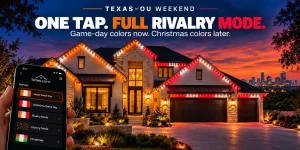
- Game Day
- Birthday
- Patio
- Party
This means no scrolling through dozens of options every week.
One tap, and you are there.
Scheduling
Remembering to turn outdoor lights off every evening is not very exciting.
Trimlight scheduling takes that hassle away.
You can use Trimlight scenes and scheduling like this:
- Turning lights on every evening.
- Turning them off at night.
- Creating recurring lighting routines.
- Setting specific event dates.
- Programming holiday displays in advance.
For example, the daily schedule is
7:00 PM → Lights turn on.
12:00 AM → Lights turn off.
That’s it.
Daily Timers Vs. Calendar Events
Daily timers and calendar events may sound similar, but they are useful for different situations.
Daily Timer:
Use this when you want something to happen regularly.
For example:
- Lights on every evening.
- Lights off every night.
- A repeating pattern during certain hours.
Calendar Event
Use this when you want something tied to a particular date or event.
For example:
- Halloween.
- Christmas.
- A birthday.
- A party.
- A special celebration.
Remember this simple rule:
If it happens regularly, think of a timer.
If it’s tied to a particular date, think of a calendar event.
Sync LED Lights to Music
Syncing music is probably one of the most exciting features of the app.
Instead of simply displaying a color, your permanent LED lights can change patterns based on the sound.
The Trimlight app includes a dedicated music function with pattern, sensitivity, sequencing, and color controls. Imagine it’s your birthday party and you have friends to celebrate.
Music is playing.
Your lights are moving with the beat.
Control Outdoor Lights from Phone
The Trimlight system is a cloud-based technology that allows compatible systems to be accessed even when you’re away from home.
For example, you’re away for the weekend and suddenly realize the following:
“Wait…did I leave the lights on?
Now instead of turning your car back, you can control outdoor lights from your phone with just a single tap.
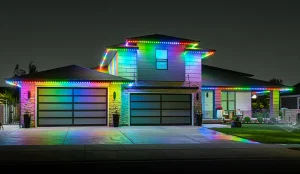
Change Color Zones
Want different sections of your home to display different colors? No worries. You can easily do it using your phone.
Color zoning can make that possible on compatible Trimlight Edge systems.
For example:
- Front roofline → red.
- Garage → blue.
- Patio → yellow.
- Backyard → green.
Keep in mind, the exact zoning options depend on how the system is installed.
How to Use Trimlight App?
Follow these steps to use your Trimlight app:
Download
Download and sign in to the Trimlight app.
Connect your lights
Connect lights to the controller.
Choose a scene
Or you can create your own.
Adjust colors, brightness, and speed
Adjust everything based on your needs.
Save your favorite scenes
Save favorites for quick access.
Set schedules
Set schedules for automatic on/off times.
Try music sync
It’s best for lights that react to music.
Share access
Give access to family members if supported.
A Few Common App Mistakes to Avoid
Avoid these app mistakes at any cost:
- Forgetting Timer Mode
- Ignoring Wi-Fi issues
- Changing advanced settings
- Not saving favorite scenes
- Skipping app updates
- Ignoring app permissions
Even though the app is designed to be user-friendly, there are a few common mistakes that most users make. So, it’s important to avoid them to make the most of your app.
Final Thoughts
Your Trimlight system isn’t just a row of permanent outdoor lights. The app is what turns those lights into something you can actually customize around your lifestyle.
From simple presets and everyday schedules to custom scenes, color zones, shared access, and music-synced effects, a lot is hiding behind that little app icon.
Start with one feature, play around with it, and build from there. If you’re a Capital Trimlight Austin customer and something doesn’t look right or you’re unsure about a controller setting, getting help is always better than guessing.